
WCAG 2.2 is the current version of the international web accessibility standard, and Level AA is the target to aim for. This checklist covers the nine new criteria, the older requirements they sit on top of, and how to check each one without guessing. It is written for the people who commission, design and sign off websites, not only for developers.
TL;DR
- WCAG 2.2 adds nine success criteria to 2.1 and retires one, 4.1.1 Parsing. Six of the nine new ones sit at Level A or AA.
- The Australian Human Rights Commission says organisations should conform with WCAG 2.2 at a minimum of Level AA. It also points to some AAA criteria worth adopting.
- Meeting 2.2 also meets the equivalent 2.0 and 2.1 requirements, so you do not need to keep separate checklists.
- Automated scanners miss several of the new criteria. Test with a keyboard, a screen reader and your own eyes.
- Designers own more of this checklist than most teams realise: colour, focus styles, target sizes and layout are all decided before a line of code is written.
Table of Contents
- What WCAG 2.2 requires, in plain terms
- Why Level AA is the Australian benchmark
- WCAG 2.2 vs 2.1: what actually changed
- The WCAG 2.2 AA checklist, by principle
- How to test the new criteria
- A checklist for designers
- Our perspective
- How to roll this out without stalling
- Where we can help
- FAQ
- Sources
What WCAG 2.2 requires, in plain terms
WCAG stands for Web Content Accessibility Guidelines. It is published by the W3C and organised under four principles: perceivable, operable, understandable and robust. The WCAG 2 overview lists 13 guidelines under those principles, and each guideline has testable success criteria.
Every success criterion sits at one of three levels:
- Level A: the basics. Without these, some people cannot use the content at all.
- Level AA: the level most organisations are expected to meet. It includes everything at A.
- Level AAA: the highest level. Not every criterion can be met on every site, but many are worth adopting where they fit.
The criteria are written as testable statements and are not tied to any one technology. That means they apply to websites, web apps, and content delivered inside mobile apps and other interfaces.
Why Level AA is the Australian benchmark
There is no Australian statute that names a WCAG version. The obligation comes from the Disability Discrimination Act 1992 (DDA), which makes it unlawful to discriminate against people with disability in the provision of goods and services. The Australian Human Rights Commission (AHRC) sets out how that applies online.
Its guidance says the latest version is WCAG 2.2, released in October 2023, and that organisations should conform at a minimum of Level AA. It also notes that the applicability of WCAG under the DDA was upheld in the Commission’s decision in Maguire v Sydney Organising Committee for the Olympic Games in 2000.
Two cautions keep this honest. The AHRC’s guidelines for equal access to digital goods and services are not legally binding, and they are meant to be read alongside the whole of the DDA. So a checklist cannot give you a legal safe harbour. What it gives you is a defensible, documented way of showing you took reasonable steps. If you have a specific complaint or contract risk, talk to a lawyer who works in discrimination law.
The AHRC also encourages organisations to look beyond AA. Its examples of AAA criteria worth considering include video transcripts, audio contrast, clear links and section headings.
WCAG 2.2 vs 2.1: what actually changed
The short version: nine criteria added, one removed, nothing else broken. The W3C’s summary of what is new in 2.2 lists the nine additions and notes that 4.1.1 Parsing is obsolete and no longer needed for conformance.
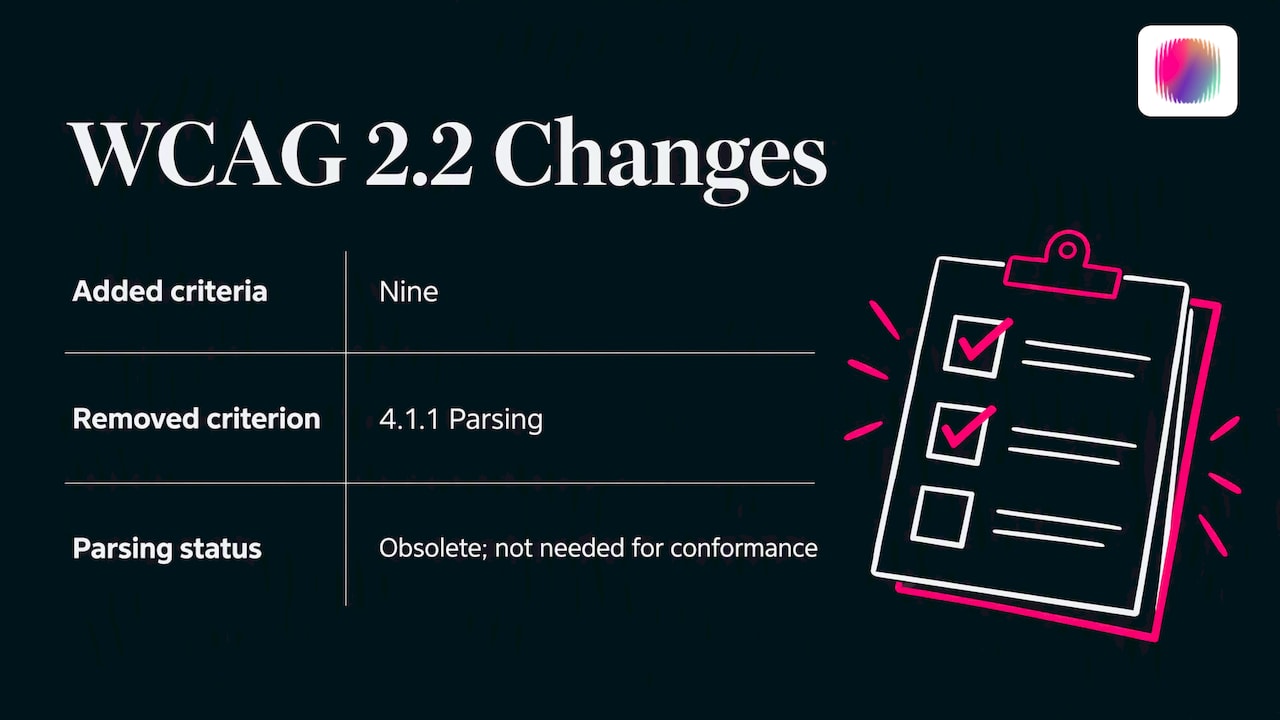
The update is also designed to be backward compatible. Content that meets 2.2 satisfies the equivalent requirements in 2.0 and 2.1, and the W3C advises using the latest version to keep your efforts relevant for longer. If your site already passes 2.1 AA, your gap is the six new A and AA criteria below.
The nine new criteria at a glance
| Criterion | Level | What it asks for |
|---|---|---|
| 2.4.11 Focus Not Obscured (Minimum) | AA | A focused element is not fully hidden behind sticky headers, cookie banners or chat widgets |
| 2.4.12 Focus Not Obscured (Enhanced) | AAA | No part of the focused element is hidden |
| 2.4.13 Focus Appearance | AAA | The focus indicator is large enough and has enough contrast |
| 2.5.7 Dragging Movements | AA | Anything done by dragging can also be done with a single pointer action |
| 2.5.8 Target Size (Minimum) | AA | Pointer targets are at least 24 by 24 CSS pixels, or have enough spacing |
| 3.2.6 Consistent Help | A | Help options appear in the same place across pages |
| 3.3.7 Redundant Entry | A | People are not asked to re-enter information they already gave in the same process |
| 3.3.8 Accessible Authentication (Minimum) | AA | Logging in does not depend on a cognitive test such as remembering a password with no way to paste or use a manager |
| 3.3.9 Accessible Authentication (Enhanced) | AAA | A stricter version of 3.3.8 |
Levels are as listed on the W3C page and on the WCAG 2.2 specification. Check the specification for the exact wording and exceptions before you record a pass or fail.
The WCAG 2.2 AA checklist, by principle
This is a working checklist, not a replacement for the standard. For the full wording, use the WCAG 2.2 specification. For a pared-back reference that is not the standard itself, WebAIM’s WCAG 2 checklist is a handy second window to keep open.
Perceivable
- Every meaningful image has a text alternative. Decorative images are marked so screen readers skip them.
- Video has captions. Audio-only content has a transcript.
- Text contrast is at least 4.5:1 (3:1 for large text). Interface components and graphics that carry meaning are at least 3:1.
- Text can be resized to 200% and content reflows at a narrow width without sideways scrolling.
- Information is never carried by colour alone: error states, chart legends and required fields need a second cue.
- Headings, lists and tables use real structure, so the visual order matches the reading order.
Operable
- Everything works with a keyboard alone, and there is no keyboard trap.
- A skip link lets people jump past repeated navigation.
- Page titles, link text and headings describe their purpose.
- Focus order is logical and the focus indicator is always visible.
- New in 2.2: focus is not hidden behind sticky elements (2.4.11).
- New in 2.2: drag-and-drop, sliders and map interactions have a single-click alternative (2.5.7).
- New in 2.2: buttons, icons and links are at least 24 by 24 CSS pixels, or sit in enough space (2.5.8).
- Time limits can be extended or turned off, and moving or flashing content can be paused.
Understandable
- The page language is set in the code.
- Navigation and repeated components behave the same way on every page.
- Form fields have visible labels, clear instructions and useful error messages with suggestions for fixing them.
- New in 2.2: the help link, contact option or chat sits in the same relative place on every page (3.2.6).
- New in 2.2: multi-step forms pre-fill or let people select details already entered (3.3.7).
- New in 2.2: login does not rely on memory or transcription alone. Allow paste, password managers, email links or passkeys (3.3.8).
Robust
- Custom controls expose a name, role and value to assistive technology.
- Status messages, such as “item added” or “form sent”, are announced without moving focus.
- You no longer need to test 4.1.1 Parsing. Still, keep your markup valid, because broken markup causes other failures.
How to test the new criteria
A clean automated scan does not mean you conform. AllyProof’s coverage notes make the point that automated tests only flag potential failure patterns and cannot establish full compliance with a criterion. Practitioners at Accessing Higher Ground say the same about the new criteria, noting that scanners tend to miss Focus Not Obscured and Accessible Authentication.
Here is a manual routine for the six new A and AA criteria. Allow about an hour per key template.
- Focus Not Obscured (2.4.11). Tab through the page with your sticky header, cookie banner and chat widget all showing. Watch for any focused link or field that disappears underneath. Repeat at a small viewport and at 200% zoom.
- Dragging Movements (2.5.7). List every drag interaction: carousels, sliders, file uploads, reorderable lists. Confirm each has a tap or click alternative, such as arrow buttons.
- Target Size (2.5.8). Inspect small icons, close buttons, pagination links and footer link lists. Measure them, and check the spacing where they fall under 24 pixels. Inline text links are exempt, so do not fail a paragraph for them.
- Consistent Help (3.2.6). Open five different pages and check that the contact link, phone number or chat sits in the same relative spot.
- Redundant Entry (3.3.7). Walk through a checkout, enquiry or registration flow. If you ask for the same address or email twice, offer a tick box or auto-fill.
- Accessible Authentication (3.3.8). Try to log in with a password manager and by pasting. Confirm nothing blocks paste, and that any puzzle or image-selection step has an alternative.
Then add a screen reader pass and a keyboard-only pass over your most important journeys: donating, enrolling, booking, contacting. Record your results as evidence (what you tested, with what, and what you saw), not only pass or fail. That record is what you show a client, board or complainant later.
If you want to build a repeatable audit process, our website accessibility audit checklist for Australian organisations walks through scoping and reporting. The discipline is the same as any structured IT security audit: define the scope, gather evidence, fix, then retest.
A checklist for designers
Many WCAG failures are baked in before development starts. If you design, these are the decisions to settle in the file, not in QA:
- Colour palette: test every text and background pairing for contrast, including hover, disabled and error states. Brand colours that fail should get an accessible companion shade.
- Focus style: design it. A thin default outline on a busy background will fail users. Specify a visible, high-contrast indicator for every interactive component.
- Sticky elements: if your header is 80 pixels tall, tell developers to give anchored content scroll padding so focus is never covered.
- Touch and click targets: build icon buttons at 24 pixels or more, and aim larger on mobile.
- Forms: show labels above fields, not just as placeholder text, and design clear error messages.
- Alternatives to dragging: every slider or reorder gesture needs a button version in the design.
- Motion and media: plan captions, transcripts and a way to pause animation.
- Help placement: pick one location for help and keep it fixed across templates.
This is where brand and accessibility meet. A brand system that bakes these rules into its palette, type scale and component library makes every later page easier to get right.
Our perspective
We work with disability organisations and social enterprises, and our team includes young creatives with lived experience of disability. That changes how we look at a checklist. A list can tell you a button is 24 pixels wide. It cannot tell you that the page still feels like it was built for someone else.
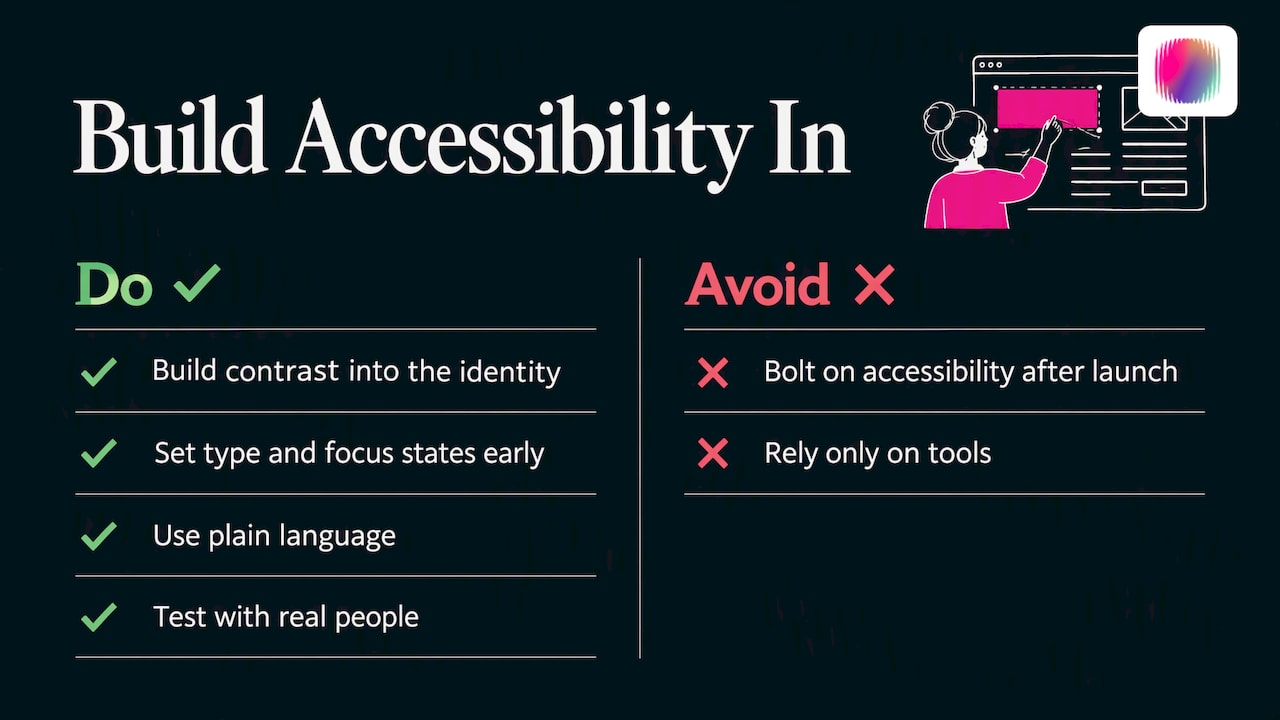
What we see most often is accessibility treated as a late audit, bolted on after the brand and website are finished. The result is a site that technically passes but still reads as generic: stock imagery, cautious language, a palette chosen for safety rather than character. Disability brands in particular deserve better than that.
Our view is simple. Build the contrast, type, focus states and plain language into the identity from day one, and conformance stops being a cost and becomes part of how the brand looks and sounds. Then test with real people, not only tools. A checklist is the floor. Your audience, including people with disability, should be able to tell that you thought about them when you made the thing.
— Tommy
How to roll this out without stalling
You do not need to fix everything in one sprint. A sequence that works for small teams:
- Audit your top five journeys, not every page. Pick the ones that bring in donations, enquiries or enrolments.
- Fix templates first. Header, footer, forms and navigation affect every page, so one fix lands everywhere.
- Fix the design system. Update colour tokens, focus styles and button sizes once, so new content inherits them.
- Write an accessibility statement that says what you tested, to which standard, and how people can tell you about a barrier.
- Set a review rhythm. The AHRC treats accessibility as an ongoing obligation, so retest after redesigns, new plugins and major content changes.
- Brief suppliers. Put WCAG 2.2 AA in every agency, developer and platform contract, and ask for evidence.
Your brand voice guidelines matter here too. Plain, consistent language helps with several criteria, from clear labels to understandable error messages.
Where we can help
If you would like the brand, website and content to carry accessibility in their design rather than as an afterthought, that is the work we do. We offer brand strategy, brand design, web design and content creation for disability organisations and social enterprises. You can see the full range on our services page, or start from the Disbranded home page. If you prefer to build your brand yourself, we also run DIY courses.
FAQ
What are the WCAG 2.2 requirements?
WCAG 2.2 is a set of testable success criteria under four principles: perceivable, operable, understandable and robust. In Australia, the AHRC says organisations should conform at a minimum of Level AA. That means meeting every Level A and AA criterion, including the new ones for focus, dragging, target size, consistent help, redundant entry and authentication.
What does WCAG stand for?
It stands for Web Content Accessibility Guidelines. The W3C’s Web Accessibility Initiative publishes them, and they are the accepted international benchmark that the AHRC points to when it explains the DDA.
Is WCAG 2.2 mandatory in Australia?
No Australian law names a specific WCAG version. The DDA prohibits disability discrimination in providing goods and services, and the AHRC guidance recommends WCAG 2.2 Level AA as the minimum. The guidelines themselves are not legally binding, so seek legal advice for your specific situation.
If my site meets WCAG 2.1, is it compliant with 2.2?
Not yet. Since 2.2 builds on 2.1, you need to close the gap on the six new Level A and AA criteria and stop worrying about 4.1.1 Parsing. Do a manual check of focus visibility, dragging alternatives, target sizes, help placement, repeated form entry and login.
Can an automated scanner tell me if I pass?
No. Scanners are useful for catching obvious issues quickly, but they cannot confirm that a criterion is met, and they often miss focus and authentication problems. Pair them with keyboard and screen reader testing.
Sources
- Standards and guidelines on digital accessibility, Australian Human Rights Commission
- Guidelines for equal access to digital goods and services, Australian Human Rights Commission
- WCAG 2 overview, W3C Web Accessibility Initiative
- What’s new in WCAG 2.2, W3C Web Accessibility Initiative
- Web Content Accessibility Guidelines (WCAG) 2.2, W3C
- WebAIM’s WCAG 2 checklist
- WCAG coverage, AllyProof Docs
- What WCAG 2.2 actually requires and how to test for it, Accessing Higher Ground
- IT security audit: a practical guide for global businesses