
A good website accessibility audit checks your site against WCAG 2.2 Level AA, combines automated scans with manual testing, and ends in a prioritised fix list that someone owns. This checklist walks you through that process in the order we would run it, with the Australian context: what the Australian Human Rights Commission expects, what to put in your report, and where people with disability should be involved.
TL;DR
- Audit against WCAG 2.2 at Level AA. The Australian Human Rights Commission says organisations should conform to at least that level.
- Run an automated scan first, then test by hand: keyboard only, a screen reader, zoom, and a plain-language read of your content.
- Record scope, WCAG version, tools, results per criterion and a prioritised remediation plan. A documented process puts you in a stronger position if a complaint is made.
- Passing WCAG is not the same as being usable. Test with people with disability, including people with cognitive and intellectual disability.
- Treat the audit as a yearly cycle, not a one-off project.
Table of Contents
- What a website accessibility audit actually is
- Before you start: scope and set-up
- Step 1: Run an automated scan
- Step 2: The manual checklist
- Step 3: Test with people, not only with tools
- Step 4: Write the audit report
- Common failures to look for first
- Our perspective: accessibility is a brand decision
- Step 5: Fix, retest and keep going
- Where we can help
- A printable checklist summary
- FAQ
- Sources
What a website accessibility audit actually is
An audit is a structured review of your site against a defined standard, producing evidence of where you pass, where you fail and what to fix first. A quick scan with a browser extension is a check. An audit has a scope, a method, a record and a plan.
For Australian organisations the standard is the Web Content Accessibility Guidelines. The current version is WCAG 2.2, released in October 2023, and the Commission’s guidance says organisations should conform at a minimum of Level AA, and consider selected Level AAA criteria such as video transcripts and clear section headings. WCAG is organised around four principles: content must be perceivable, operable, understandable and robust. Your checklist should map to those four.
The legal backdrop is the Disability Discrimination Act 1992. The Commission’s advisory notes on web access encourage designers to involve users of assistive technology in testing, and organisations that document their testing and keep an accessibility statement are better placed to show they acted reasonably. That is guidance, not legal advice. If you have received a complaint or are unsure of your exposure, speak to a lawyer who works in discrimination law.
Before you start: scope and set-up
Most audits go wrong before any testing happens, because nobody decided what was being tested. Settle these five things first.
- Base URL and page sample. List the domain and the templates that matter: home page, a content page, a form, a search results page, a login or checkout flow, a PDF or two. Testing every page is rarely practical, so test every distinct template and every critical user journey.
- Standard and level. Write down “WCAG 2.2 Level AA”. Do not leave it as “WCAG”.
- Browsers and assistive technology. Pick a realistic set, for example Chrome and Safari, VoiceOver on iPhone and Mac, and Narrator or another screen reader on Windows.
- Who signs off. Name an executive sponsor and a person who owns the fix list. Without both, findings sit in a spreadsheet.
- Who tests. Decide how people with disability will be involved, as paid testers or advisers, not as an afterthought.
Step 1: Run an automated scan
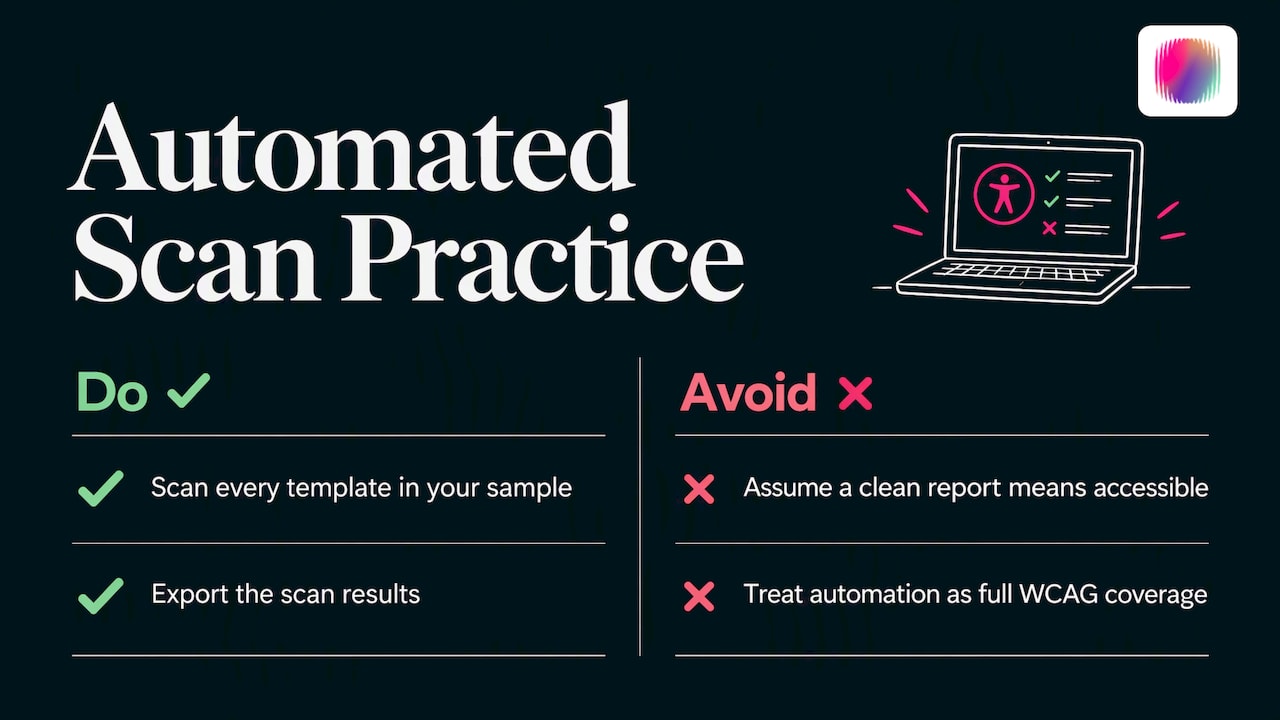
Automated tools are quick and good at repeatable, code-level problems. Free options such as Axe, WAVE and ARC Toolkit will flag things like low-contrast text, missing form labels, empty links and missing alternative text attributes. Run them on every template in your sample and export the results.
Keep expectations realistic. As web.dev’s guide to manual testing explains, automated tooling does not cover all of the WCAG success criteria, which is why manual testing exists. A clean automated report does not mean an accessible site. It means you have cleared the easy part.
Step 2: The manual checklist
This is the core of the audit. Work through each group below on every template in your sample. The DWP Accessibility Manual makes a blunt point worth repeating: to claim full compliance you need to check everything, and there is no way around that. The groups below are a practical way to organise it.
Perceivable: can everyone take the content in?
- Text alternatives. Every meaningful image has alt text that says what the image is for. Decorative images are marked so screen readers skip them. Charts and infographics have a text equivalent of the data.
- Colour contrast. Body text, buttons, form borders, icons and focus indicators have enough contrast against their background. Check text over photos and gradients by eye, as scanners often miss them.
- Colour is not the only signal. Errors, required fields and link states are not conveyed by colour alone.
- Video and audio. Captions on video, transcripts for audio, and audio description where visuals carry meaning. Check that auto-playing media can be paused.
- Zoom and reflow. Zoom the browser to 200% and then 400%. Content should reflow into a single column without horizontal scrolling and without text being cut off. Test text resizing without breaking layouts.
- Orientation and spacing. Nothing locks to portrait or landscape, and users can increase text spacing without losing content.
Operable: can everyone use it?
- Keyboard only. Put the mouse away. Tab through each page. Every link, button, menu, form field and custom widget should be reachable and usable, and you should never get trapped.
- Visible focus. You can always see where you are on the page. WCAG 2.2 strengthened requirements here, so look for focus indicators hidden by sticky headers or cookie banners.
- Logical order. Focus moves in an order that matches the visual layout and makes sense when read aloud.
- Skip links. A “skip to main content” link works for keyboard users.
- Target size and dragging. WCAG 2.2 added criteria for the size of clickable targets and for alternatives to drag-and-drop. Check buttons on mobile and any slider or reorder function.
- Time limits and motion. Session timeouts can be extended, carousels can be stopped, and nothing flashes rapidly.
- Descriptive links and page titles. Each page has a unique, meaningful title, and link text makes sense out of context. Several “Read more” links in a row is a failure to note.
Understandable: will people follow it?
- Headings. One H1 per page, then H2 and H3 in logical order with no levels skipped. The content review checklist from Ellen Harvey lists this as a standard check for Australian government sites.
- Language. The page language is set in the code, and changes of language within the page are marked.
- Forms. Every field has a visible label, instructions sit next to the field, and error messages say what went wrong and how to fix it. Check that people are not asked to re-enter information they already gave in the same process.
- Consistent navigation. Menus and help links appear in the same place on each page.
- Plain language. Read the content aloud. Short sentences, common words, one idea per paragraph, and the main action obvious. Content is the most overlooked part of accessibility, and rewriting for plain English is often the biggest single improvement.
Robust: does it work with assistive technology?
- Screen reader pass. Using VoiceOver or Narrator, move through headings, landmarks, links and forms. Listen for unlabelled buttons, confusing reading order and dynamic content (such as a form error or a modal) that is never announced.
- Name, role, value. Custom components such as accordions, tabs and date pickers expose their state (expanded, selected, required) to assistive technology.
- Valid, clean markup. Native HTML elements are used wherever possible. A styled div pretending to be a button is a common source of failures.
- Documents. PDFs and Word files are tagged, have headings and reading order, and are available in an accessible format. Consider an Easy Read version of key information.
Step 3: Test with people, not only with tools
The Commission’s advisory material is direct on this: technical conformance does not automatically guarantee equality or compliance with the DDA, and designers should involve users of assistive technology in testing where possible. WCAG criteria are broad. They can miss the barriers facing people with intellectual disability, such as heavy cognitive load or complicated navigation.
This is not abstract. A 2025 study of Australian government cancer screening information audited it against the W3C supplemental cognitive criteria and Easy Read standards, showing that cognitive accessibility can be assessed in a structured way, and that it is often where public information falls short.
A practical approach for a small or mid-sized organisation:
- Recruit three to five testers who use different assistive technology or have different access needs, such as a screen reader user, a keyboard or switch user, someone with low vision, and someone with a cognitive or intellectual disability.
- Give them realistic tasks (find your contact details, apply for a service, donate, book) instead of asking them to “look around”.
- Pay them for their time and expertise.
- Record where they hesitate, not just where they fail.
Step 4: Write the audit report
A report that nobody can act on is wasted effort. The Australian Government’s Digital Service Standard 2.0 asks agencies to establish a baseline and measure against it, and the same discipline works for any organisation. Your report should include:
| Report element | What to record |
|---|---|
| Scope | Base URL, pages and templates reviewed, date of testing |
| Standard | WCAG 2.2, Level AA |
| Tools and methods | Automated tools used, browsers, screen readers, devices, user testing sessions |
| Results | Pass, fail or not applicable for each success criterion, with page examples and screenshots |
| Severity | Rating based on impact on users and how often the issue appears |
| Remediation plan | Owner, fix description, target date, retest date |
| Accessibility statement | Public summary of known issues, what you are doing about them, and how people can contact you |
Prioritise by user impact and frequency. A missing label on your donation form beats a contrast problem on a rarely visited archive page. Keyboard traps and unlabelled form controls usually sit at the top.
Common failures to look for first
The Commission’s advisory notes include a section on common web accessibility failures. In our experience of reviewing disability sector sites, the same few themes come up again and again:
- Images with missing or meaningless alt text, particularly logos, photo-led banners and social graphics.
- Low-contrast brand colours used for body text and buttons.
- Forms without proper labels or helpful error messages.
- Menus and sliders that only work with a mouse.
- Links that say “click here” or “learn more”.
- Heading levels chosen for how they look rather than what they mean.
- PDFs used as the only way to share important information.
Notice how many of these are decisions made in design and content, not in code. That matters for what comes next.
Our perspective: accessibility is a brand decision
We are a creative agency working with disability organisations, and our team includes young creatives with disability. That shapes how we see audits. Most of the checklist items above land on a brand or content decision somebody made earlier: a palette that cannot meet contrast, a typeface that is hard to read at small sizes, stock imagery that shows disability as a problem to be solved, copy that is dense and abstract.
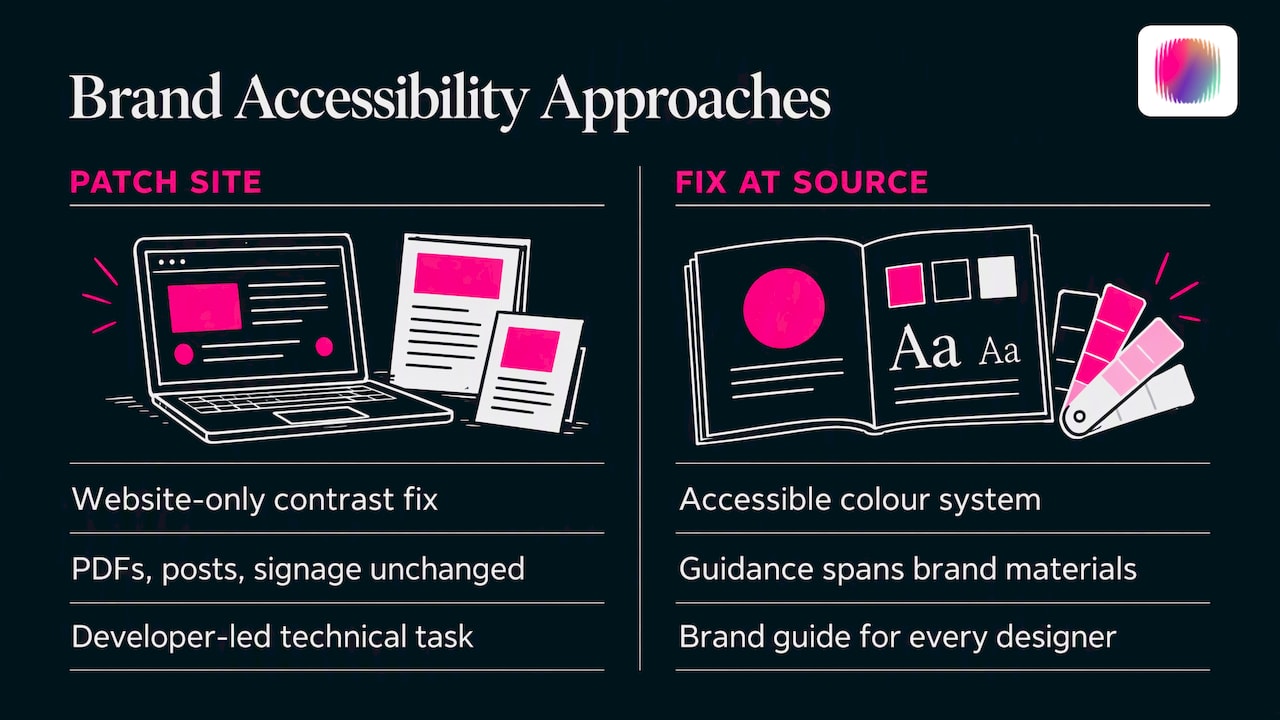
So we would argue against treating an audit as a purely technical exercise handed to a developer. If your brand colours fail contrast, patching the website leaves the same problem in your PDFs, your social posts and your signage. The better move is to fix it at the source: an accessible colour system, readable type, plain-language tone of voice and image guidelines, all written down in a brand guide that every designer and agency you work with can follow.
We also think the sector sometimes confuses compliance with respect. A site can tick every box and still feel like it was built for the organisation rather than for the people it serves. Involving people with lived experience in testing and in creative decisions is how you find that out. It is also why generic imagery and messaging, the thing we exist to move disability brands away from, so often goes hand in hand with generic accessibility: both come from not asking.
— Tommy
Step 5: Fix, retest and keep going
An audit is a baseline. Insiders who run accessibility programs suggest a roadmap with executive sponsorship, a baseline audit and accessibility sprints built into an annual cycle, which matches what we see work. A simple version:
- Fix critical issues first. Anything that blocks a task, such as keyboard traps, unlabelled form fields and inaccessible checkout or enquiry flows.
- Fix patterns, not instances. Correct the component or template, so every page that uses it improves.
- Add a quality gate to publishing. A short checklist for editors: heading order, alt text, link wording, plain language, captions. Without one, new content undoes your good work.
- Retest. Re-run the automated scan and repeat the manual checks on anything you changed.
- Publish or update your accessibility statement.
- Schedule the next audit. Once a year is a sensible minimum, plus a check before any redesign, rebrand or major launch.
If a rebrand is on the horizon, build accessibility into it from the start. Our rebrand rollout plan and checklist covers the sequencing, and the same logic applies: fix the foundations before you roll them out across channels. Accessibility also extends to social media, from alt text on images to captions on video, which we cover in our guide to Instagram for nonprofits.
Where we can help
If your audit shows that the problems run deeper than a few code fixes, such as inaccessible brand colours, unclear messaging or a website that needs rebuilding, that is the work we do. We provide brand strategy, visual identity and brand design, web design, content creation and social media for disability organisations and social enterprises, and our team has lived disability experience. See our services or start from our home page to tell us what you are working on.
A printable checklist summary
Use this condensed list as a working document for each template.
- [ ] Scope, WCAG 2.2 AA and testing environment documented
- [ ] Automated scan run and exported
- [ ] Alt text reviewed for every meaningful image
- [ ] Contrast checked for text, controls and focus indicators
- [ ] Captions and transcripts present for media
- [ ] Page works at 200% and 400% zoom without losing content
- [ ] Whole page usable by keyboard, with visible focus and no traps
- [ ] Unique page titles, logical headings, descriptive links
- [ ] Forms labelled, with clear and helpful error messages
- [ ] Screen reader pass completed on key journeys
- [ ] Content read for plain language
- [ ] PDFs and documents checked or replaced
- [ ] User testing with people with disability completed
- [ ] Report written, fixes prioritised and assigned
- [ ] Accessibility statement published
- [ ] Next audit scheduled
FAQ
How often should we run a website accessibility audit?
At least once a year, and again before any redesign, rebrand or major feature launch. New content and plugins can introduce fresh problems at any time, so a lighter check at each publishing step helps in between.
Can we do an accessibility audit ourselves?
Yes, for a first baseline. Automated tools and the manual checks above will find a great deal, and the DWP’s basic checks guide is a good model for a non-specialist team. For a full conformance claim, or if your site is complex, bring in specialist testers and involve people who use assistive technology.
Is WCAG 2.2 AA a legal requirement in Australia?
The Disability Discrimination Act 1992 prohibits discrimination, and the Australian Human Rights Commission says organisations should conform to WCAG 2.2 at a minimum of Level AA. The legal test is about reasonable steps, and documenting your testing helps. For a view on your own situation, talk to a lawyer.
Are automated accessibility checkers enough?
No. They are quick and good at catching things like contrast errors and missing labels, but they cannot judge whether a page makes sense, whether focus order is logical or whether content is easy to understand. Pair them with keyboard, screen reader, zoom and plain-language checks.
What should an accessibility statement include?
The standard you aim for, the date of your last review, known issues and your plan to fix them, and a clear way to contact you for help or to report a barrier. Keep it in plain language and update it after each audit.
Sources
- Standards and Guidelines on digital accessibility, Australian Human Rights Commission
- World Wide Web Access: Disability Discrimination Act Advisory Notes, Australian Human Rights Commission
- World Wide Web Access: Advisory Notes ver 4.1 (2014), Australian Human Rights Commission
- Manual accessibility testing, web.dev
- Basic accessibility checks, DWP Accessibility Manual
- Content review checklist for Australian government websites, Ellen Harvey
- Accessibility of Australian government online cancer screening information for people with intellectual disability