
TikTok has a dedicated accessibility menu, and you reach it from Profile, the three-line menu, then Settings and Privacy, then Accessibility. It holds captions, text size, colour contrast, reduced motion and more. Viewers control most of it. Creators control the rest: captions, alt text and the way a video is designed. This guide covers both sides, so your organisation’s videos work for Deaf, hard of hearing, blind, low-vision and neurodivergent audiences.
TL;DR
- Viewers find TikTok’s accessibility tools under Profile > three-line menu > Settings and Privacy > Accessibility. Menu labels shift between app versions, so look for the Accessibility entry.
- Captions are off by default for viewers. Long-press a video, choose Captions and translations, then toggle Show captions, or switch on auto-generated captions in settings.
- Auto-captions are a starting point. Always review them, fix errors and keep them clear of faces and signers.
- Text to speech was built to help people who cannot see on-screen text. Use it as one layer, not as your only access method.
- Accessible TikTok is mostly design: contrast, pace, plain language, descriptions and transcripts.
Table of Contents
- What accessibility features does TikTok offer in Australia?
- How to find TikTok accessibility settings
- Captions on TikTok: for viewers
- Captions on TikTok: for creators
- Text to speech on TikTok
- Barriers that remain, and what they mean for you
- Making your TikTok videos accessible beyond auto-captions
- A simple workflow for your team
- Perspective
- Work with a team that lives this
- FAQ
- Sources
What accessibility features does TikTok offer in Australia?
According to the Centre For Accessibility Australia, TikTok offers auto-generated captions on video, text to speech, alt text for photo posts, a colour contrast switch, support for device bold text, text size controls, dark mode and photosensitivity controls. The Australian App Store listing also lists support for VoiceOver, Voice Control, Larger Text, Dark Interface, Sufficient Contrast and Captions on iPhone.
The feature set has grown in steps:
- Text size. In late January 2024 TikTok added a slider that lets people adjust the size of system text inside the app.
- Alt text for photos. In May 2025 TikTok extended alt text to photo posts, so creators can add a description during upload or after publishing.
- AI-generated alt text. The Verge reported that TikTok was testing an AI feature to describe content aloud when a creator has not supplied alt text. Creators can still write their own.
- Contrast and bold text. TechCrunch reported that colour contrast increases the foreground colours of text, icons and interface elements, and that TikTok shows text in bold when device bold text is on.
- Motion and brightness. In December 2025 TikTok rolled out a toggle to switch HDR video to standard dynamic range and a Reduced Motion toggle, aimed at people with light sensitivity, low vision or migraines.
TikTok frames these updates as part of serving users with visual, auditory, motor and cognitive differences. Features can be tested, renamed or rolled out in stages, so what you see on your phone may differ slightly from this list.
How to find TikTok accessibility settings
On iOS and Android, tap Profile, then the three-line menu, then Settings and Privacy, then Accessibility, as described by The Verge. On desktop, the same page sits in the left-hand taskbar.
Inside, you will find controls grouped roughly like this:
| Setting | What it does | Who it helps |
|---|---|---|
| Text size | Slider that scales system text in the app | Low vision, older users, tired eyes |
| Increase colour contrast | Strengthens foreground colours of text and icons | Low vision, colour-vision differences |
| Captions | Always show auto-generated captions | Deaf, hard of hearing, noisy or silent settings |
| Reduced motion | Minimises motion-based effects and transitions | Vestibular conditions, migraines, sensory sensitivity |
| HDR to SDR toggle | Turns off HDR playback | Light sensitivity, migraines |
| Photosensitivity and thumbnail controls | Skips flagged posts, limits animated thumbnails | Photosensitive epilepsy, sensory overload |
Lifehacker Australia notes that colour contrast and text size sit under Accessibility > Appearance. It also says bold text is switched on at the device level, not inside TikTok. On iPhone that is under Settings > Display & Brightness. On Android it is under Settings > Accessibility > Display size and text > Bold text.
If you manage a team or a social media account, ask each person who reviews your content to open this page once. It shows you the experience your audience can customise and the parts only you can fix.
Captions on TikTok: for viewers
Captions are the feature people search for most, and the one most often misunderstood. The Royal National Institute for Deaf People (RNID) explains the viewer steps:
- Long-press a clear part of the video.
- Select Captions and translations.
- Toggle Show captions.
If captions are not available for that video, the label reads “Show captions (unavailable)”. That usually means the creator has not generated them or the language was not recognised.
To avoid repeating this on every clip, switch on the always-show option in the Accessibility settings. wikiHow documents the same toggle, plus the option to hide captions on a single video by long-pressing them.
Because viewers must opt in, your audience may be watching without captions even if you generated them. For that reason, many Deaf creators also place captions directly in the video as on-screen text. We come back to this below.
Captions on TikTok: for creators
TikTok launched auto-captions in April 2021, initially for American English and Japanese, and TechCrunch reported that creators could edit the generated text before publishing. The tool has since expanded, but the principle stands: the machine drafts, you correct.
A reliable creator workflow:
- Tap the plus button, then record or upload your video.
- On the preview screen, choose Captions from the side panel and let TikTok transcribe the speech.
- Read every line. Fix names, acronyms, service names and anything the tool mishears.
- Set the correct video language in More options before you post, so captions are generated in that language.
- Post, then check the published video with captions on.
RNID also covers manual captions: tap caption text to edit it, use the A and Tt icons to change how it looks, and drag it so it does not cover a speaker’s lips. Lip visibility matters to many people who lipread.
A few habits make captions genuinely usable:
- Keep lines short. One idea per line, readable at a glance.
- Check contrast. White text over a pale background disappears. Add a solid or semi-opaque backing.
- Place captions with care. Keep them away from faces, hands and any signer. The platform’s own interface also covers the bottom and right edges, so leave margin.
- Identify speakers when more than one person talks, and note meaningful sound such as music or laughter if it carries the meaning.
- Fix after posting if needed. Eligible videos can be edited through More options > Edit post, according to MeowTXT’s reading of TikTok’s documentation.
Text to speech on TikTok
Text to speech turns typed on-screen text into a spoken voice-over. Shopify Australia’s guide lists the steps: record or upload a video, tap Text (Aa), type your words, tap the text box, choose Text-to-speech, pick a voice, then post.
It helps in two directions. People who cannot see or comfortably read on-screen text can hear it. Creators who prefer not to use their own voice, or who have speech differences, can still narrate.
Use it with some thought:
- It is not a substitute for captions. Text to speech serves people who can hear. Captions serve people who cannot. Most videos need both layers, or a clear spoken or signed track plus captions.
- Write for the ear. Short sentences, spelled-out acronyms, no emoji strings that get read aloud awkwardly.
- Do not duplicate everything. If your voice-over already says it, extra synthetic narration of the same text can create noise for people using screen readers or with auditory processing differences.
- Choose a clear voice and listen to the whole video before posting.
Barriers that remain, and what they mean for you
The settings help, but they do not remove every barrier. Deafblind Victoria reports that deafblind people who use Auslan can face videos that move too fast, weak background contrast, captions that are too small and signers who are hard to see. Some need to watch in short bursts because of eye strain.
Silktide’s analysis of social platforms points to search thumbnails without alt text, awkward comment threading for screen readers and live streams with no captioning support. It also notes that the For You feed moves at a pace screen readers struggle to match.
There is a useful lesson in a wider Australian finding. Intopia’s survey of 218 people in Australia and New Zealand found that almost all the top online barriers relate to website and content design, not to assistive technology itself. People are asking for better-built content rather than better tools. On TikTok, that content is yours.
Making your TikTok videos accessible beyond auto-captions
The new Auslan Translation Guidelines 2026, developed by Deaf Australia with support from ACCAN and including Deafblind Victoria, Deafblind Australia, Deaf Connect and Expression Australia, give practical advice reported by Deafblind Victoria. It covers clear contrast, good lighting, slower signing, shorter videos, captions that do not block the signer, plain English summaries, transcripts and visual descriptions. Although written for Auslan video, most of it improves any organisational video.
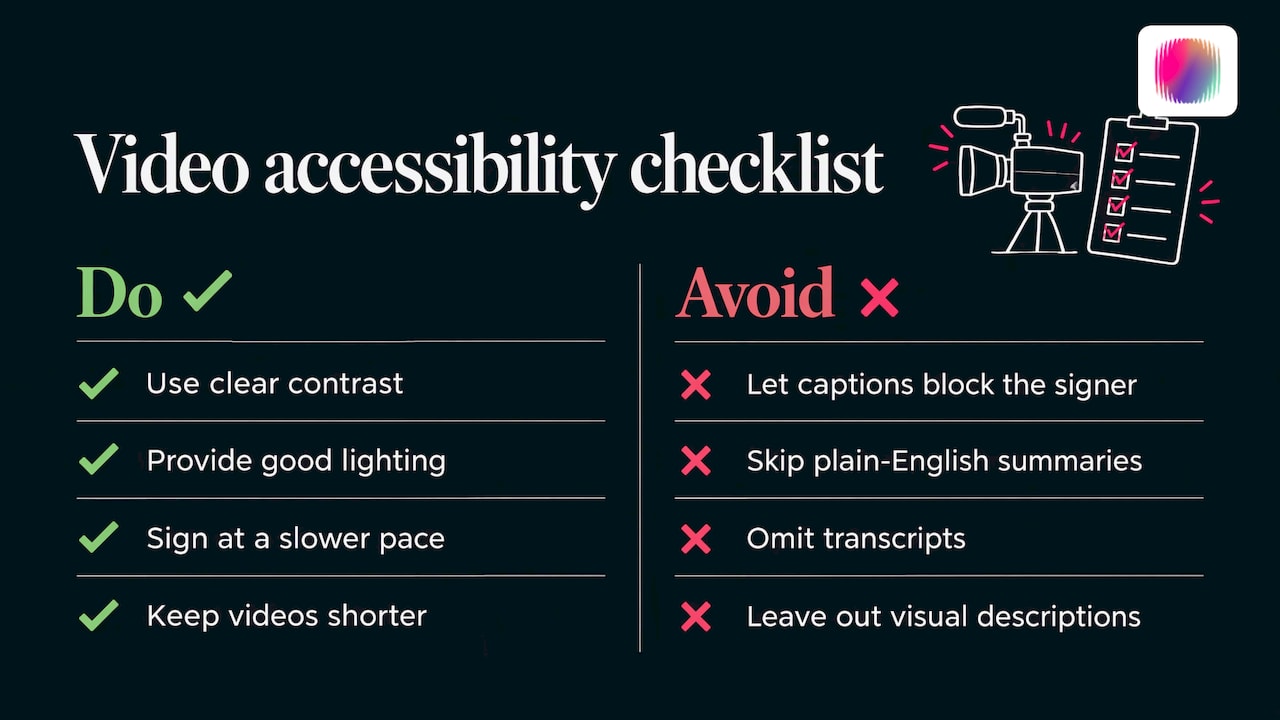
Turn that into a pre-publish checklist:
Design for sight
- Use strong contrast between text and background, and keep text large enough to read on a small phone.
- Put important words on screen long enough to read twice. A good test is whether someone reading slowly can finish before it disappears.
- Add alt text to photo posts. Describe what matters to the message, not every pixel. Do not rely on AI-generated descriptions to carry your meaning. Even imperfect automatic alt text can beat none for screen reader users, as The Verge’s reporter noted, but your own wording will be more accurate.
- Avoid flashing, strobing or rapid cuts, and keep effects restrained for people who use reduced motion settings.
Design for hearing
- Caption everything, and correct the captions. Silktide describes a captioning culture among Deaf creators that routinely goes beyond the auto-caption tool: corrected captions, on-screen text built into the design, and a social norm that uncaptioned video is discourteous. Match that standard.
- Keep audio clear, with music lower than speech.
- If you use Auslan, light the signer well, keep them fully in frame and keep captions off their hands and face.
Design for cognitive load
- Slow the pace. One message per video beats five squeezed into 30 seconds.
- Use plain language and explain jargon. Our guide to neuroinclusive design goes deeper on pace, layout and predictability.
- Put a short plain summary in the post caption so people can decide whether to watch.
Provide an alternative
A transcript is the most flexible fallback: it works for screen readers, Deafblind audiences using braille displays, and anyone who prefers reading. If you republish video elsewhere, tools for generating a transcript without captions can give you a draft to clean up and link from your website or post. Review any machine transcript before you publish it, as you would with captions.
If your TikTok content links back to a website, the destination matters too. Our WCAG 2.2 checklist covers what to check there, and an accessibility statement tells visitors what to expect and how to reach you. Infographics you repurpose into slides should follow our notes on accessible infographics.
A simple workflow for your team
Accessibility works when it is part of production, not an afterthought. A lightweight process for a small organisation:
- Script. Write in plain language, with on-screen text and spoken words planned together.
- Shoot or design. Check lighting, contrast and framing. Keep signers and faces clear.
- Edit. Generate captions, correct them, and position them.
- Describe. Add alt text to photo posts and a one-line summary in the caption.
- Review. Watch once with sound off and once with captions off and sound on. Then watch it on a small screen at arm’s length.
- Publish and listen. Invite feedback from your community and fix what people report.
If you do not yet have a wider plan, our social media plan for nonprofits shows how to fit this into a content calendar.
Perspective
Most organisations treat TikTok accessibility as a settings problem. It is a brand problem. Captions, contrast, pace and plain language are part of how people experience who you are, long before they read your mission statement.
At DISBRANDED our team has lived disability experience, and we work with young creatives with disabilities. We see the same thing again and again: disability brands lean on generic imagery and generic messaging, and then wonder why audiences scroll past. Accessible, distinctive content does the opposite. It shows that you understand your community, because you have built for it.
Our view is simple. Use the platform’s tools, then go further than the platform does. Correct the captions. Design text into the frame. Write descriptions that carry meaning. Do it consistently and it becomes a recognisable part of your voice, not a compliance chore.
Tommy
Work with a team that lives this
If you want TikTok content that is accessible and unmistakably yours, we can help. We build brand strategy, visual identity and creative assets for disability organisations, social enterprises, startups and established businesses, and we manage social media for teams that want it handled. Our team brings lived disability experience to every project.
See our services for brand strategy, design, social media and DIY courses. If you are weighing up the budget, read about social media management costs in Australia. If your messaging needs sharpening first, start with our brand messaging framework.
FAQ
How do I turn on captions on TikTok?
Long-press a clear part of the video, choose Captions and translations, then toggle Show captions. To keep captions on for every video, switch on the always-show option in Settings and Privacy > Accessibility. If the label says captions are unavailable, the creator has not generated them for that video.
Where are TikTok accessibility settings?
Open your Profile, tap the three-line menu, then Settings and Privacy, then Accessibility. On desktop, use the left-hand taskbar. Exact labels can vary between app versions and devices, so look for the Accessibility entry if the path differs.
Can I edit TikTok’s automatic captions?
Yes. Before posting, open the captions panel on the preview screen, tap the text and correct it. You can also change its appearance and drag it so it does not cover a speaker’s face. Always set the correct video language first, so the transcription is more accurate.
What is TikTok text to speech for?
It reads your typed on-screen text aloud in a chosen voice. It was introduced in 2020 with accessibility in mind, to help people with visual impairments or those who prefer listening, according to Async. It does not replace captions for Deaf and hard of hearing viewers.
Is TikTok accessible for blind and low-vision users?
TikTok supports VoiceOver on iPhone, plus text size, contrast, bold text and reduced motion controls. Alt text is available for photo posts. Some parts of the experience, such as fast-moving feeds and live streams, remain hard for screen reader users, so creators should describe visuals in their posts and audio.
Sources
- TikTok Rolls Out New Accessibility Updates, Centre For Accessibility Australia
- TikTok Boosts Accessibility with New Text Size Options, Centre For Accessibility Australia
- TikTok App, Australian App Store
- TikTok is using AI-generated alt text to describe photos, The Verge
- TikTok rolls out new accessibility tools, TechCrunch
- TikTok Adds Motion And Brightness Controls, Net Influencer
- TikTok Is Adding Three New Accessibility Features, Lifehacker Australia
- How to use video captions on TikTok, RNID
- How to Turn off Captions & Subtitles on TikTok, wikiHow
- TikTok adds auto captions, TechCrunch
- How to Add Captions on TikTok After Posting, MeowTXT
- TikTok AI Voice: How to Use Text to Speech, Shopify Australia
- You Know That AI Voice on TikTok?, Async
- New Auslan video guidelines include deafblind people, Deafblind Victoria
- Social Media’s Accessibility Crisis, Silktide
- Assistive Technology Survey 2025 Results, Intopia
- YouTube Transcript Without Captions: 6 Ways to Get One, Claras